Default desktop keys in v0.7.1
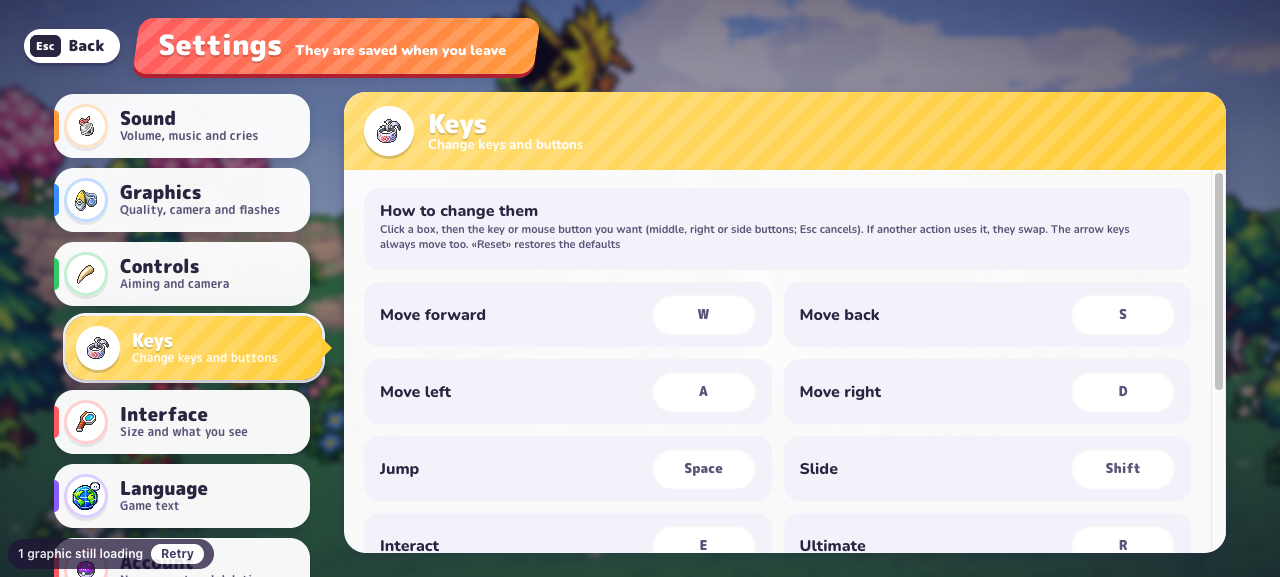
Open Settings → Keys to inspect or change these defaults. The menu says arrow keys always move too; selecting a binding and pressing Esc cancels a rebind. Your saved bindings can differ from this fresh-profile reference.
| Action | Default |
|---|---|
| Move | W / A / S / D, or arrow keys |
| Jump | Space |
| Slide | Shift |
| Interact | E |
| Ultimate | R |
| Lock target | Right click |
| Automatic / manual aiming | Q |
| Auto-run | T |
| Big map | M |
| Automatic ultimate | Y |
Give the game window focus
A calculator field and the game are separate places to type. After entering a number in the planner, click inside the game before trying a movement key. Otherwise the browser may still be editing the field or scrolling the surrounding page.
When you are finished playing, click the field you intend to edit rather than using game keys to reach it. This simple focus check helps distinguish a website input issue from a changed game binding. It also prevents a typed budget from becoming an accidental gameplay action.
Choose an aiming and input mode
Settings → Controls describes Automatic aiming as targeting the closest enemy and Manual aiming as aiming toward the camera. Start with one mode, then compare whether the attack is going where you expect before changing several build choices.
The same panel has Touch controls with Automatic, Touch, and Keyboard and mouse options. If automatic detection does not switch on your phone’s controls, select Touch. The setting says it is saved on the current device.
Pause and fullscreen do different jobs
Use the original game’s current pause control when you need to inspect a menu or step away. Our fullscreen button changes how much space the game occupies. It is not a request to stop the run.
A browser may use Escape to leave fullscreen. After leaving, inspect the game itself before assuming it is paused or resumed. Use the visible exit control if the game is focused and a keyboard shortcut is not doing what you expect.
PokeBonk keyboard controls after using the calculator
If PokeBonk movement keys stop responding after you enter a Stardust balance, click inside the game window. The calculator field may still have keyboard focus. If the problem continues, open Settings → Keys and compare your current bindings with this reference. Check aiming separately: Automatic targets the closest enemy, while Manual aims toward the camera. A focus problem does not require changing your build.
Frequently asked questions
Why do the movement keys scroll the website?
The game may not have focus. Click inside its window, then check the current in-game bindings. When editing a calculator input, keyboard events belong to that field.
Are these phone or gamepad controls?
No. The reference is for a reported desktop keyboard setup. Use the controls actually shown on your device; touch and gamepad mappings are not verified by this page.
Where do I check my PokeBonk keyboard controls?
Open Settings → Keys in the original game. Personal bindings can differ from this reference, so compare the current screen before changing a shortcut.
Sources & research notes
The sources below distinguish our menu observations, original announcements, community reports and browser documentation. Check the version and scope before applying a value to your run.
- PokeBonk v0.7.1 — directly observed English menusOriginal project
Fresh Guest, zero completed runs and no purchases. Read starter passives, default keys, touch settings, 19 first-level Lab prices, the visible item pool, Squirtle’s move panel and mode preparation screens. Screenshots appear alongside the relevant guide sections. Combat outcomes, later-level prices and real-device touch performance were not tested.
- MDN — requesting fullscreenBrowser documentation
Browser fullscreen requires a user interaction and can be unavailable or denied.